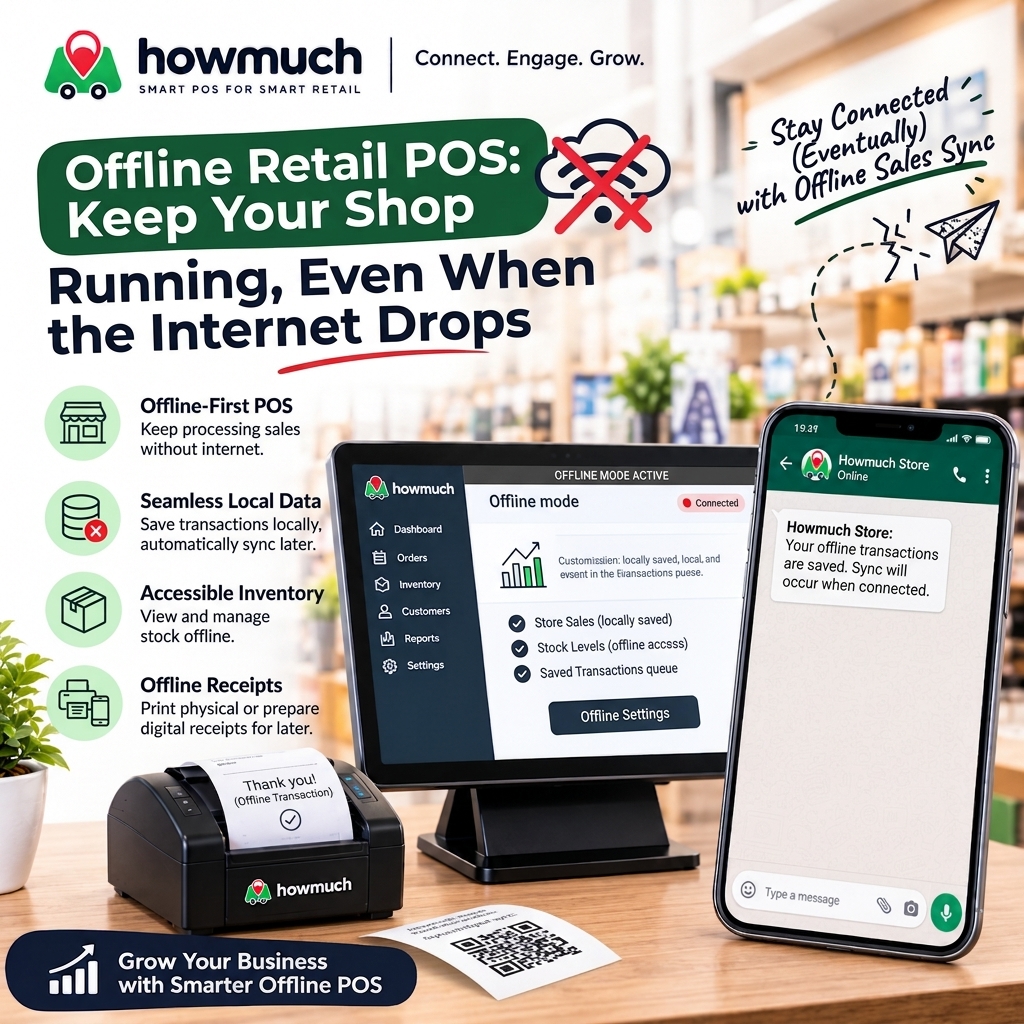
Howmuch Retail POS: Keep Your Shop Running, Even When the Internet Drops

A slow or unreliable internet connection can interrupt a busy checkout, delay a stock check or make it harder to find a customer’s purchase history. With Howmuch Local POS, supported retail operations can run from a local store on your computer, helping your team continue essential work when the connection is unavailable.
Local mode is designed for retail businesses that want to manage sales, products, stock and other day-to-day records on their own computer. It is not simply cloud POS with a temporary internet outage: it uses a separate local store and local data. That distinction matters, especially when planning how to protect records or use multiple devices.
Local POS must be enabled in the desktop build and set up for your business. Once configured, core local workflows use the data available on that computer rather than requiring a live connection to the Howmuch backend for every operation.
What can you do with Howmuch Local POS offline?
Create sales and manage checkout
Staff can search the local product catalog, add items to an order, apply supported fixed or percentage line discounts, and calculate tax using the local product settings. Orders can be saved as drafts and completed when ready. The POS also keeps local order history and supports full or partial returns for eligible sales.
Cash is the supported local checkout method. The system can record cash activity, including drawer sessions and cash in or out, so staff can reconcile the till as part of the day’s work. These are software records of cash handling; do not assume that every physical cash drawer can be opened or controlled automatically.
Receipt printing is available through the computer’s system print dialog. Printer compatibility and the print experience depend on the device and printer setup.
Find products and manage stock
The local catalog can hold product details such as variants, SKUs, barcodes, prices, units, tax settings and opening stock. Products can be entered individually or added from a CSV file. Howmuch validates an import before saving it, and an invalid or duplicate entry can prevent the batch from being committed.
Retailers can also use Bulk Product Updates to change selected variants’ prices, quantities, categories, brands and other supported details together. A preview lets staff review proposed changes before applying them; validation problems prevent the batch from saving.
Stock can be tracked by location, with low-stock thresholds and stock movement records to help staff understand what has changed. Local workflows also cover stock activity associated with purchases, returns, delivery challans and service materials. Some specialized stock-entry options are available for particular business categories, but local mode should not be treated as full support for every advanced batch, serial-number or bin-management process.
Record purchases, suppliers and expenses
Howmuch Local POS includes workflows for recording purchases, purchase payments and returns, as well as managing supplier records. Supplier search and CSV import/export can help keep supplier information accessible on the local computer.
Expenses can be entered locally, with an image attachment where supported. Expense reports and exports help the business review recorded costs later. These records remain part of the local store; they are not automatically sent to the cloud when a connection returns.
Work with customer records and local receivables
Customer records, customer order history, and customer CSV import/export are available in local workflows. Depending on the store’s settings, local receivables features can support eligible partial payments, balances due and customer settlements. These features have configuration requirements and should not be assumed to provide every cloud credit or financing workflow.
Local loyalty and customer pricing features may also be available where configured and supported. As with other local tools, the information is tied to the local store on that installation.
Review reports and manage staff access
Local reports can help retailers review sales tax recorded in the POS, low stock, stock movements, customer and item sales, purchases, expenses and operational margins. Reports use the records available locally, so they can be useful for reviewing activity on that computer without waiting for a cloud report to load.
Local user and permission workflows help control which staff can perform particular actions. A manager override is also available for supported permission checks. Business profile and store settings can be managed as part of the local setup.
Support service based operations
For businesses that sell services as well as goods, the local implementation includes service catalogs, bundles, appointments, staff-related workflows, jobs and materials. A supported subset of promotion features is available too. Promotion rules and service workflows have limits, so retailers should confirm that the specific features they use are supported in their local setup.
How local data works
Local POS stores its operational records in local databases associated with the store on that computer. In practical terms, this means local products, sales, stock and other supported activity are available to the local installation that created them.
It does not mean that the records are automatically backed up to the cloud or shared with another device. A second computer has its own local store unless a separate, supported process is used to transfer data. Even stores on the same installation remain distinct; some local transfer workflows may be available between them, but that is not cross-device synchronization.
Howmuch includes tools for creating and restoring a local archive in supported builds. These are deliberate actions, not automatic cloud backups. Create and protect archives according to your business’s data-protection process, and do not rely on an internet connection returning as a backup plan.
What happens when the internet comes back?
When connectivity is restored, local sales and stock changes do not automatically upload to the Howmuch cloud or merge with a cloud store. Local mode and cloud mode use separate data paths. A connection returning does not turn a standalone local store into a synchronized cloud account.
Some narrowly scoped online operations may be available in particular releases, but that is not a general-purpose data sync. If your business needs cloud reporting, shared data across branches or access from multiple devices, check the available migration and cloud options before choosing a local-only setup.
What still needs an internet connection or is not available locally?
Offline use has clear boundaries:
- External payment processors are not available for local checkout. Use the supported local cash workflow.
- Regulatory e-invoicing and tax submission should not be assumed to work in local mode. Tax may be calculated and recorded locally, but that is different from submitting it to a government service.
- Automatic cloud synchronization and cloud backup are not provided for local records.
- Cross-device synchronization and transfers between separate offline computers are not available as automatic workflows.
- Advanced promotion rules and some specialized inventory workflows may not be supported locally.
- Online integrations and services still depend on their required connection and configuration.
Practical examples for retail stores
A grocery store can use its local catalog to search for products, complete supported cash sales and review low-stock items. A supermarket can use product variants and barcode search at the counter, then review sales and stock movement reports. A clothing shop can organize its catalog by variants such as size and use bulk updates when several prices need changing. An electronics retailer can look up products by SKU or barcode and keep purchase and stock records together.
These examples describe local workflows not a promise that every peripheral, payment terminal or advanced inventory process will work offline.
A practical POS for local operations with no hidden sync promise
Howmuch Local POS can help a shop keep supported checkout, catalog, stock, purchase, customer, expense and reporting tasks on its own computer. For retailers looking for offline retail POS software, POS software for computers or an offline grocery store POS system, it offers a way to continue selected daily operations without depending on a live cloud connection for every action.
The key is understanding what “local” means: records stay with the local store, and internet recovery does not automatically sync them. Confirm that Local POS is enabled in your desktop build, check that your required workflows are supported, and plan how to make and protect local archives. With those limits understood, Howmuch Local POS can help retail teams manage everyday work from their own computer even when the internet is unreliable.
0 Comments